Book Categories:
How to Use LEDEdit-K Software: Complete Tutorial

This is the “LEDEdit-k” version tutorial of the article I referenced in my LEDEdit 1st tutorial, as I promised. The settings and interfaces are different between LEDEdit and LEDEdit-k, as you may be aware. This tutorial is for you if you intend to use LEDEdit-K software. There were only 2 variations of the “LEDEdit-k” versions at the time this article was prepared: the 2016 and 2017 versions, both of which have already expired.
You must change your system date to use them. Change the following dates in your system:
- Change the system date for LEDEdit-K 2016 to date between January 2016 and January 2017. (May).
- Change the system date for LEDEdit-K to date between January 2017 and December 2018 (May).
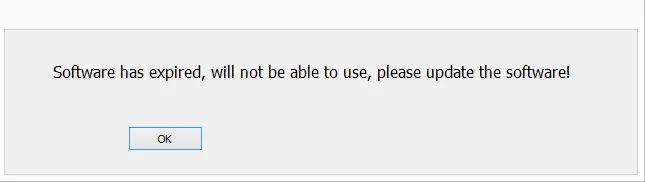
If not, when you try to run the software, you will be presented with the error message “LEDEdit software has expired“.
I'm going to guide you step by step through the full project creation process, from creating the project to exporting the files, just as I did in my first tutorial. Let's get going.
Table of Contents
Launch the “LEDEdit-K” software.
Starting a New LEDEdit-k Project
1- To start a new project, click “File” and choose “New“. By doing so, the new project window will open. When building the LED layout, pick the controller type you want to use from the “Controller Type” list and enter the maximum number of lights you intend to use per port (the amount you choose will result in an automated controller change if it exceeds the controller port you chose). For the maximum number of lights per port, please check your controller's user manual.
2- It's time to create an LED layout now that we have our LEDEdit project established. A depiction of the actual arrangement of your LEDs is called an LED layout. For the sake of simplicity, we will cover how to create a panel that looks like an LED layout in this tutorial. I'm going to create a simple LED panel layout in this tutorial using LEDEdit's “Automatic layout creator” feature. Please click on the links below to learn how to create custom LED layouts.
Select a save to store the project, then click “OK” after clicking the “Browse” option. Within the “New Project” box, click “OK” once again.
Setting LED Layout
It's time to create an LED layout now that we have our LEDEdit project established. A depiction of the actual arrangement of your LEDs is called an LED layout. For the sake of simplicity, we will cover how to create a panel that looks like an LED layout in this tutorial. I'm going to create a simple LED panel layout in this tutorial using LEDEdit's “Automatic layout creator” feature. Please click on the links below to learn how to create custom LED layouts.
- How to Create LED Layout Using LEDEdit-k Software
- How to Create LEDEdit Layout using AutoCAD Software
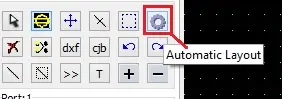
On the left side, click the “Automatic layout creator tool” icon. The “Automatic layout creator” window will show up as a result.
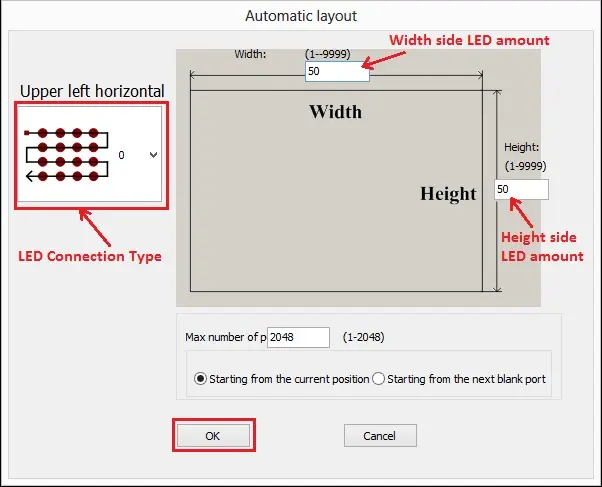
Select an LED connection type from the drop-down list in the Automatic Layout Creator window (you can choose whatever you like). Fill in the number of LEDs you wish to use in the width and height side text sections. “OK” is clicked. Now, click anywhere in the workspace to place the newly created LED panel.
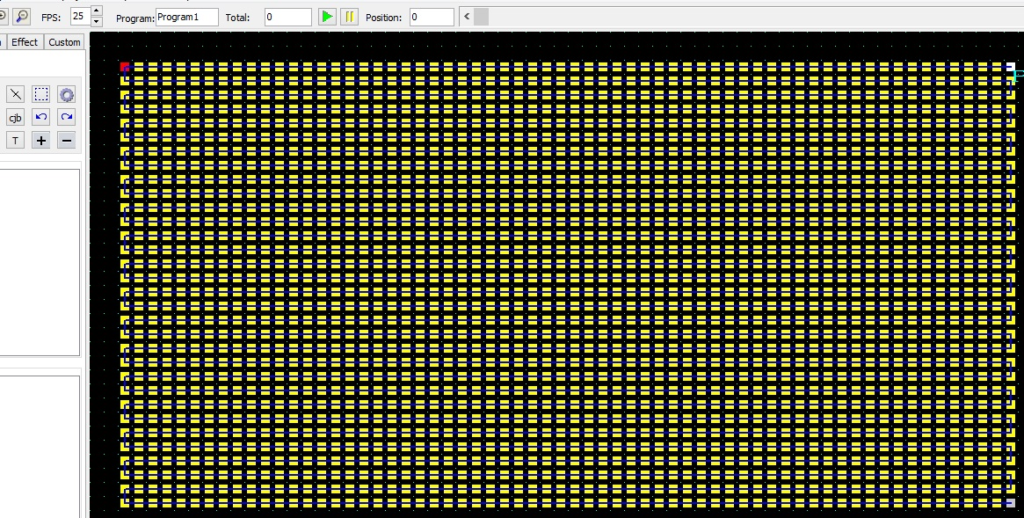
Please double-check that the connection on your LEDs physically corresponds to the connection on your layout.
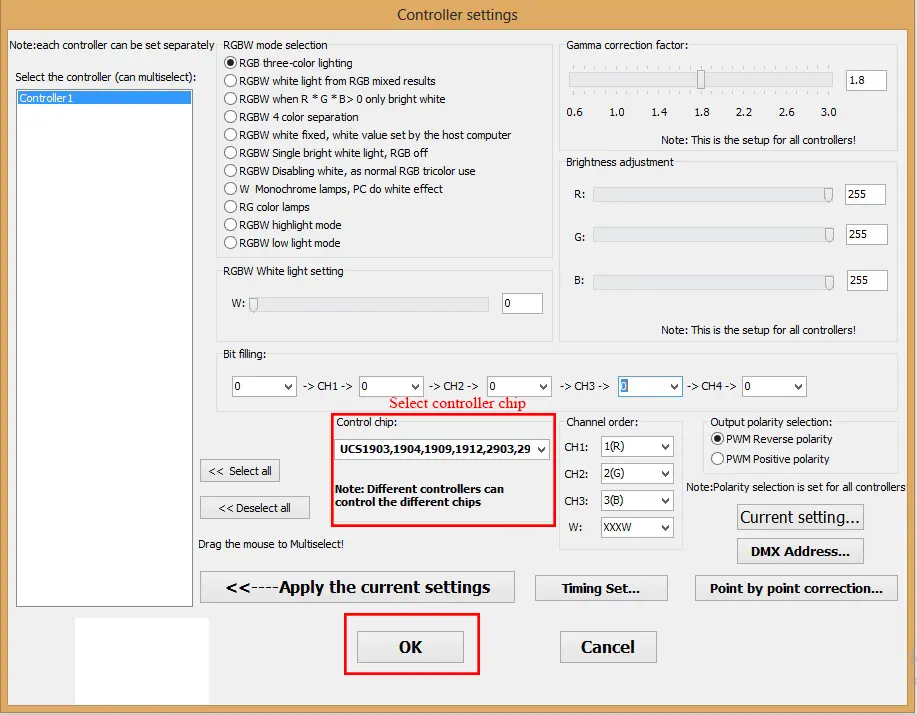
Select “Controller Settings” from the “Settings” option in the top menu bar. Using the control chip drop-down list, choose the control chip for the LED strip or string you are going to use. You may also change the brightness levels (if supported), change the order of the channels, select the type of LEDs you're going to use, and view the current chip settings in this window. To understand how certain settings work, you may experiment with them. Press the “OK” button after that.
Recording a video or an animation
Creating the panel is now complete. By recording an animation or a video, it's time to program the LED panel.
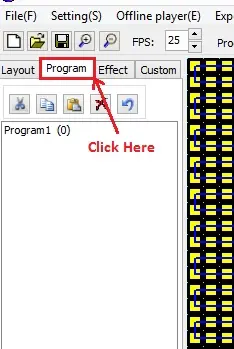
In the right sidebar, select the “Program” tab. “Program 1” will be added to the Program tab. Give the program a name, then click “OK” to add as many as you want using the “Add” button below. This will allow you to create several animations under different program labels. For different programs, use different labels. Don't use the same label again and again. By using the delete button, you may get rid of programs. The number in front of the “Program” label reflects the number of frames the program has recorded.
Click on the “Effect” tab in the left-side panel after selecting the program label you want to record from the list.
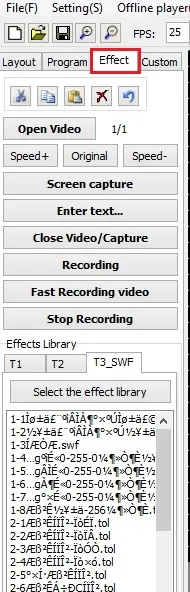
Here are the specific button actions:
- Open video: This command is used to open video and image files.
- Speed+: This option is used to increase the frame rate.
- Speed-: This option is used to reduce the frame rate.
- Originally: It was used to reset the frame rate.
- Screen capture: a method of capturing a computer screen.
- Enter text: This is used to make a custom text animation.
- Close/Video Capture: Used to exit the capture mode.
- Recording: initiates the recording process.
- Recording in Fast Mode: Record in Fast Mode.
- Stop recording: To put an end to the recording process.
We must first open or select an animation or video in LED editing software before we can record it. Select a video or animation from your computer by clicking the “Open Video” button, or you may select an animation from the Effects library. “LEDEdit-K” versions support a significant amount of video formats, in contrast to “LEDEdit” versions.
Effects Library
An example animation list may be found in the Effects Library. You may also select one of the animations from that list; simply double-click on the animation to select it. Select one at a time from the list until you discover the most suitable one. We haven't yet started recording, so don't worry.
You may skip the section below (Custom Text Animations) and continue from the “Recording in LEDEdit-k Software” title if you have already completed the “How to Create LEDEdit Layout using AutoCAD Software” or “How to Create LEDEdit Layout using CorelDraw Software” lessons.
Custom Text Animations
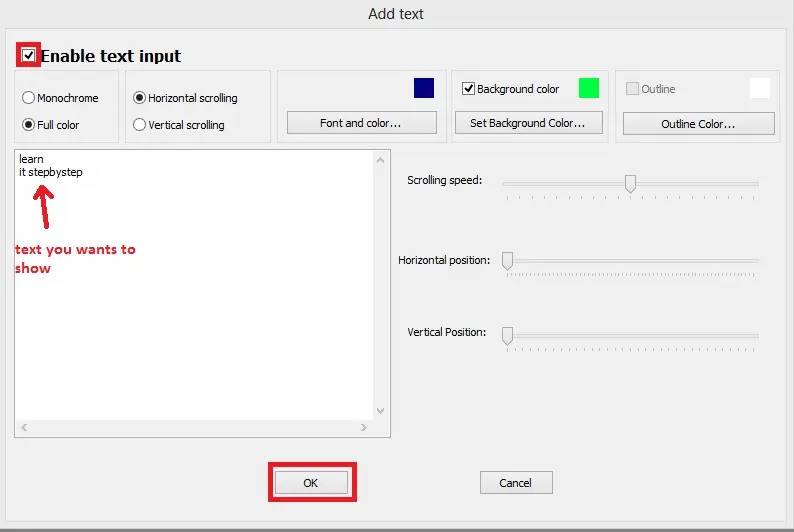
Click the “Enter text” button to put custom text in your panel. The “Add Text” window will pop up. To enable text input, select the “Enable text input” radio button. Select the effect and type the message you want to display in the text box.
- monochrome: In front of the background color you selected, the text will be displayed. The text will be displayed in front of the selected animation if you disable the background animation.
- Full color: Only the text area will have the animation or video you selected displayed (like a mask or screen).
The direction in which your text scrolls may be changed using the horizontal and vertical radio buttons.
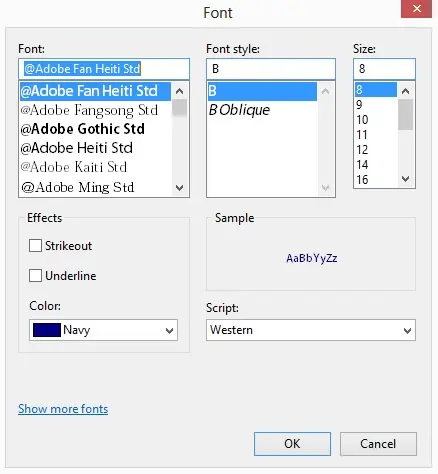
- Click on “Font and color” to change the font type, font style, size, and color of the font.
- Click on the “Background color” check box to enable the background in monochrome mode.
- Click on the “background color” button to change the background color.
- Click on the “Outline” check box to enable the outline of the text (only works in monochrome mode).
- Click on the “Outline color” button to change the outline color.
Recording in LEDEdit-k Software
It's time to record the animation or video we selected, which is currently being played in the background. For recording the animation, there are two methods:
- Click on the “Recording” button to record the video while it is being played normally.
- Click on “Fast Recording Video” to record the video while it is being played quickly.

I recommend that you use the “Recording” button. Click the button you want to record (record or rapid record) immediately before the start frame, wait until it reaches the final frame you want to terminate the video, and then click the “Halt Recording” button to stop the animation or video recording. As you record the video, you will see the total increase.

To quit capture mode, click the “Close Video/Capture” button. You may now use the “play” and “stop” buttons to play and stop your recorded movie or animation. You can also use the time slider to go to a specific frame in your video by clicking and holding the time slider bar and dragging it along the time slider. In the recorded video or animation, “Position” indicates your location.
Edit Mode
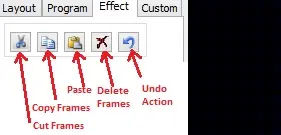
Now that we have caught or recorded the video, we must edit it to get the desired final outcome. As an example, I'll demonstrate how to delete by deleting the first 10 frames of my animation and how to copy and paste options by copying 15 to 30 frames and pasting them after the final frame.
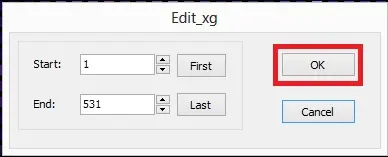
Click on the “delete frames” button to remove the frames. The “Delete Frame” window will then pop up. In the “Start” text field, enter the frame number where your deleting frame range begins. Then, in the text field labeled “End“, type the frame number at which your deleting frame range terminates. It is between 1 and 10 in my situation. Simply enter the same frame number into both text areas if you wish to delete one frame. If you click the “First” button, the start text field number will be changed to the first frame number. The “Last” button changes the “End” text field to the final frame number of your animation when you click it. If you're deleting complete animations, these two buttons will come in handy.
Click “OK” to delete the frames.
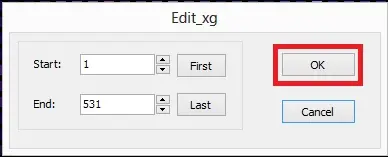
Click the “Copy Frames” button to copy the frames. Bring up the “copy frame window” by doing so. The window is the same, but it functions differently. In the “Start” text field, enter the frame number where your copying range begins. Then, in the text field labeled “End“, type the frame number at which your copying range finishes. In my case, it's 15 and 13.
Click “OK” to copy the frames.
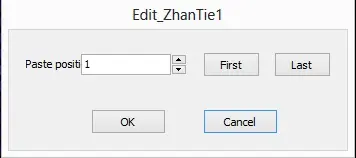
Paste the copied frames now. “Paste Frames” is the selected icon. The “Paste Frames window” will then pop up. In the “Paste Position” text field, enter the frame position where you wish to place your frame or frames.
Click “OK” to paste the frames.
To check whether the outcome is what you wanted, play the animation using the play button. Keep editing the video if necessary. Go ahead and export if it's true.
LEDEdit-K Software Project Export
Click on “Export” in the top menu bar.
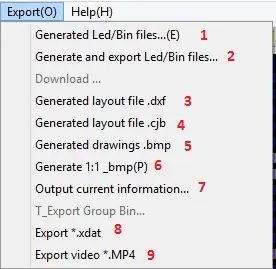
- To generate the “.led” file (the generated file will be in your “/documents/LEDEdit_K” folder).
- To create the “.led” file and save it to a specific location.
- To create a “.dxf” file with your LED layout.
- To create a “.cjb” file for your LED layout.
- To create a “.bmp” file with your LED layout.
- To create a “1:1 _bmp(P)” file with your LED layout.
- To create a text file containing information.
- You can save your animation or video in “.xdat” format.
- You can save your animation or video in “.mp4” format.
The second option, “Generate and export LED/BIN files“, should be selected to export. This will bring up the window for export settings.
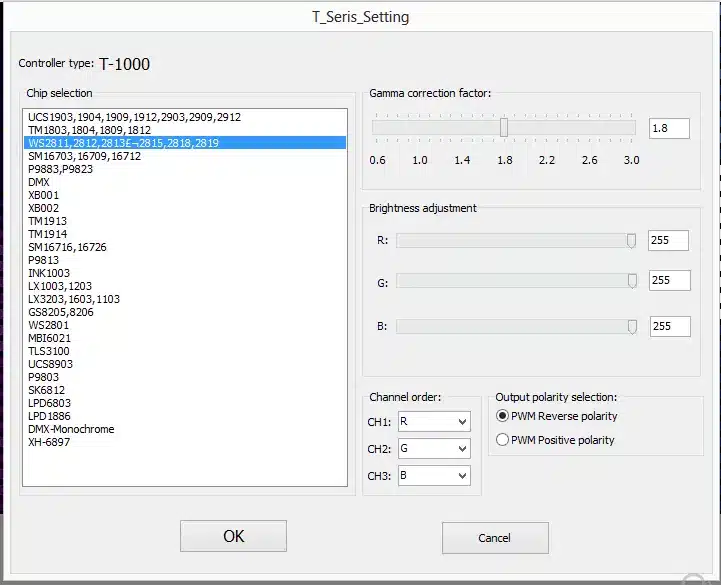
From the chip selection list, select the LED drive chip. If your LEDs have incorrect gamma effects, you may use this window to correct the gamma and adjust the brightness of each R, G, and B channel. Check the datasheet for your LED driver IC for “channel order” and “output polarity selection“. “OK” is clicked.
Select a location to store your .led file in the “Browse For Folder” window. Keep in mind that the program will delete the “led” folder and all of its contents every time you do this and replace it with a new one. Export the “.led” files into different folders on your HDD for this reason if you are working with several programs.
That's it. That is how to use LEDEdit-K software.


This blog is very interesting to learn more about led edit
Thanks Very much