We’ve reached 156K followers! ✨🎉
Thanks to your amazing support and love, our page has grown to this milestone 🙌💙
To celebrate, we’re giving you $10 OFF 🎁💵
Coupon: 156kfollowers
Thanks to your amazing support and love, our page has grown to this milestone 🙌💙
To celebrate, we’re giving you $10 OFF 🎁💵
Coupon: 156kfollowers

Huidu Technology Co., Ltd.'s HD2020 LED software represents a new round of significant changes made in 2020. To improve customers' choices, some duplicated controllers are incorporated, the control range is updated more freely, and the price is more reasonable, which is adequate to deal with the present more extensive bigger, longer, and more different displays.
HD2020 LED software's overall user interface maintains the style of simple operation, powerful functions, ease of learning and use, and supports graphics (JGP, BMP, GIF, text, etc.), text, animated characters, Excel, time, timing, counting, lunar calendar, temperature and humidity, prayer, and weather. It can also support serial (including 232 and 485), network ports, Wi-Fi, U-Disc, and other controllers and can be used for different purposes.
HD2020 LED software installation is very easy; the operation is as follows:
Find the file HD2020 V1.3.1.3.exe (or download it from our website: lededittm.com) on your PC, and double-click HD2020 V1.3.1.3.exe. The software installation wizard will enter, as shown below.
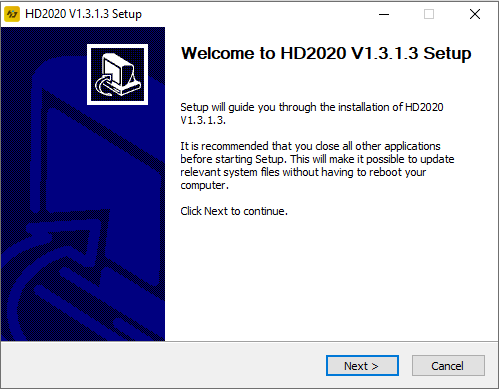
Follow the on-screen prompts (Next) to complete the installation.
After the installation of HD2020 LED software is completed successfully, the “HD2020” program group will appear in [Start]/[Programs]. Click HD2020 to run “HD2020“. You can also click the desktop HD2020 shortcut to open the software.
Open the main interface of the “HD2020 LED software” software as shown below:
The toolbar can be divided into two columns or displayed as one column. The information window can prompt whether the current command was sent successfully or display the current online device.
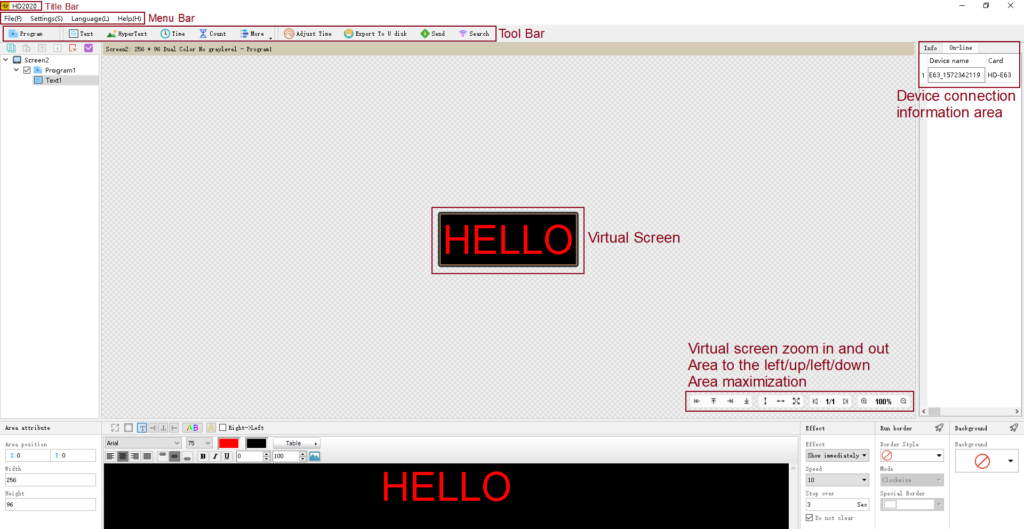
1- Title Bar: used to display the software name.
2- Menu Bar: Include File, Settings, Language, Help, and More.
2.1- File Menu: Contains new display, new cross-screen, open, save, save as, exit, and logout options, as shown in the figure:
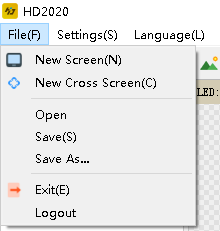
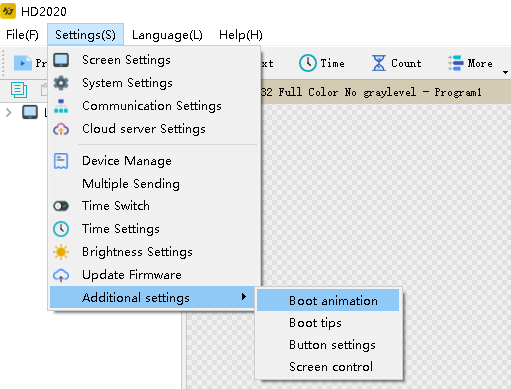
2.2- Setting menu: Including screen parameter settings, system settings, communication settings, cloud server settings, device management, cluster sending, timing switch on and off, time settings, brightness settings, firmware updates, and more settings (boot screen, boot prompt, button settings, screen control), as shown below:
– Screen setting: used to bind the device and set the basic parameters of the display, as shown in the figure.

In the first step, if the control card has been displayed normally, you only need to change the screen widescreen height, color, and gray level. If the screen does not display normally, you need to set the hardware.
The second step is hardware settings. For regular screens, please select common smart settings. For non-conventional screens, please perform smart settings (smart settings must be performed when a device is found, and U disk cards cannot be used for smart settings).
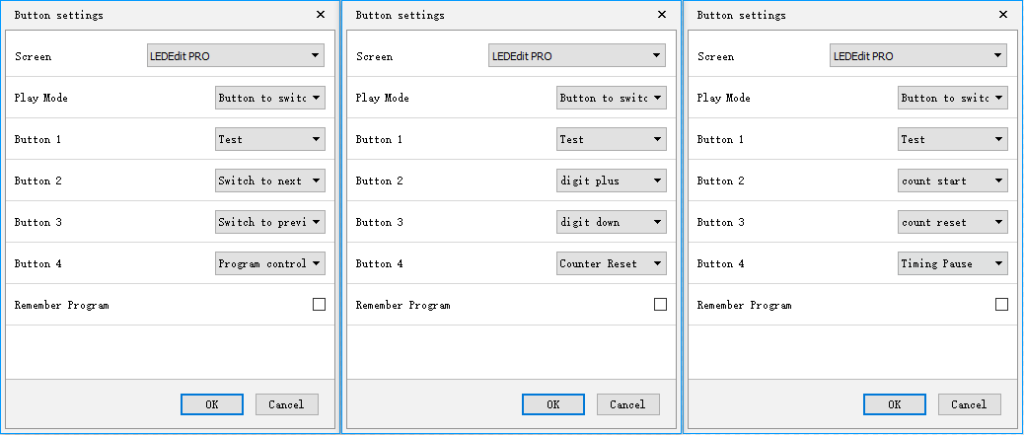
The button settings are in the Settings → More Settings → Button Settings interface, which is used to adjust the functions of the four keys, as shown in the figure below:
– Communication settings: used to modify the communication settings when multiple cards are connected.
1. The default Ethernet is the single-machine direct connection mode; that is, when there is only one card connected to the computer, there is no need to change any settings; as long as the network cable is connected properly, the device can be found.
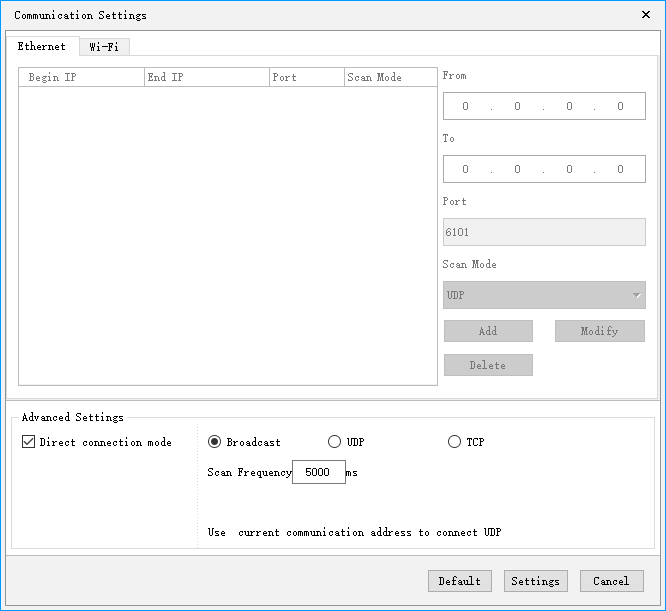
2. When you do not check the single-machine direct connection mode, it applies to the control card and the main control computer are not in direct connection mode and the control card and the main control computer are not in the same network segment, you need to add the IP address of the network segment where the control card is located to the software. The operation is shown in the figure. After adding, you can find the card on 192.168.3. * Network segment.

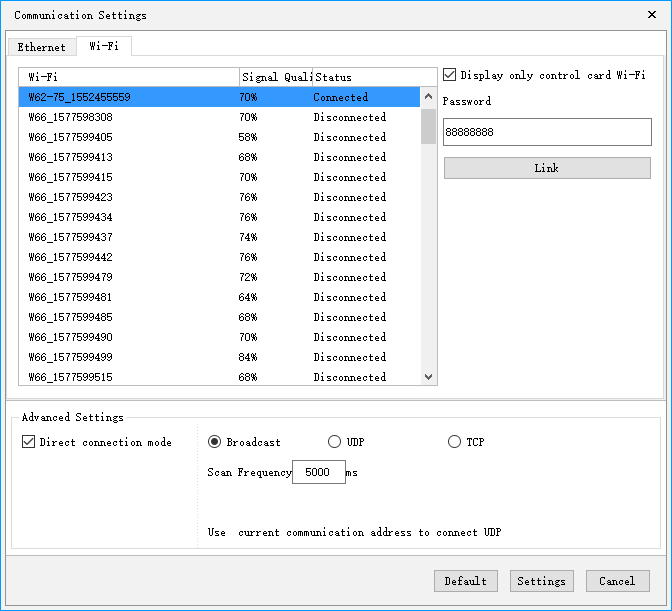
3. The Wi-Fi card interface is used to connect the Wi-Fi signal to the control card. Enter the default connection password 88888888 as shown below:
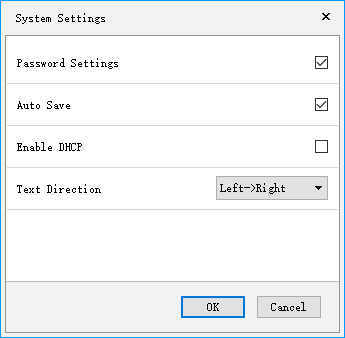
– System Settings: Used to set system parameters (not recommended to change). As the picture shows:
– Cloud server settings: Used to bind the network port card to the cloud platform, enter the registered user name and server address, as shown in the following figure:

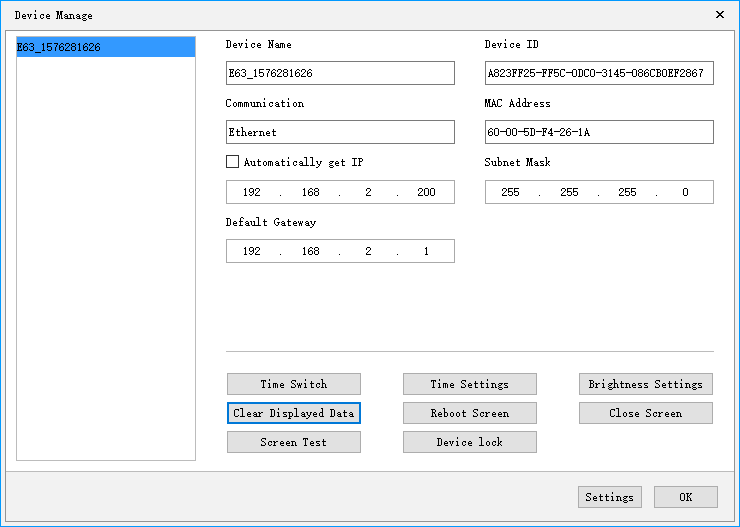
– Device manage: used to modify the names of all devices that can be found, modify the IP address of the network port card, and also manage the current device's clear display data, time settings, brightness settings, timer switch, display test, open screen, restart display, and Wi-Fi settings.
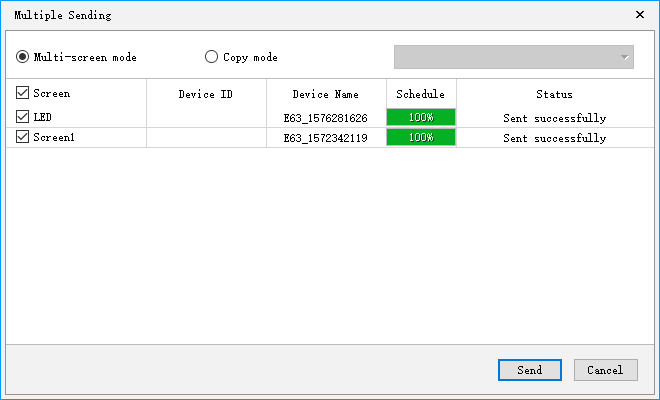
– Cluster sending: used to send multiple display files; there are two types of multi-screen mode and copy mode.
2.3- Language menu: Includes Simplified Chinese, Traditional Chinese, English, Arabic, Bulgarian, French, German, Indonesian, Hindi, Iranian, Italian, Japanese, Korean, Mongolian, Polish, Portuguese, Romanian, Russian, Serbian, Spanish, and 23 languages: Chinese, Thai, Turkish, and Vietnamese, for switching the user interface without language.
2.4- Help menu: Toolbar for viewing the version number of the HD2020 software.
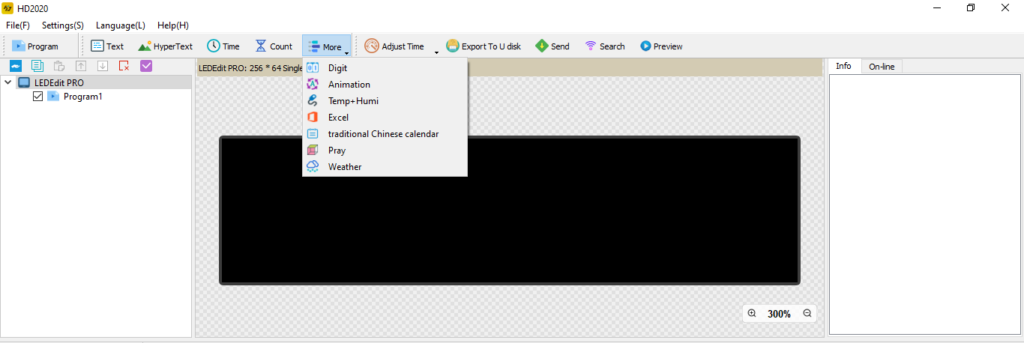
3- Toolbar: Contains programs, text, graphics, time, timing, counting, animated characters, temperature, and humidity, Excel, Chinese calendar, prayer, weather, time, U disk export, send, search for machines, and other tools, as shown in the figure: