Book Categories:
2D Patch With The Matrix Generator For DMX Output

In this tutorial, we will create an easy 2D patch with the help of the Matrix Generator for DMX output.
Task:
We have to create a patch for a 2D matrix of 4×4 pixel panels, which are controlled via DMX. The patch consists of 5 fixtures in a row and 4 fixtures per column. There should be an offset of 2 pixels between every fixture.
All pixels on this panel are RGB pixels, and there are no other control channels.
Every row should be assigned to a new DMX universe, starting with DMX start channel 1, and universe 1.
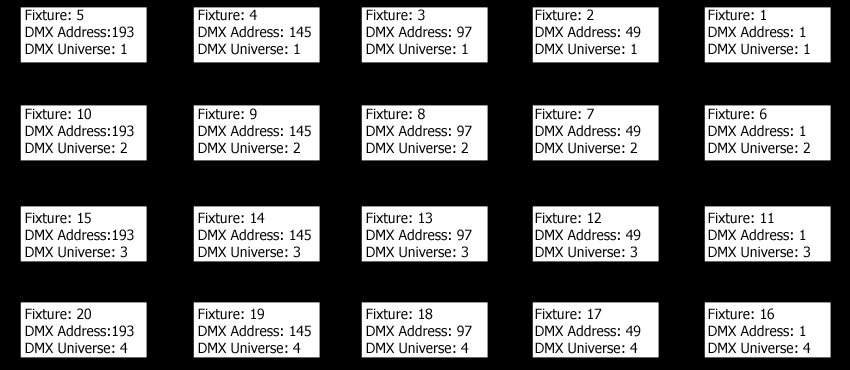
The following image shows the DMX address assignment:
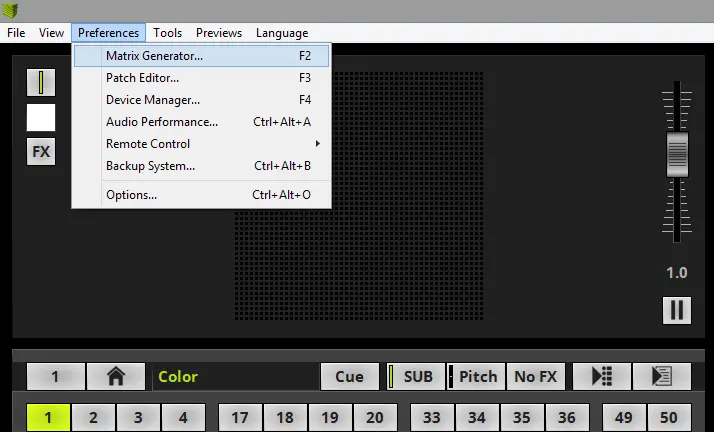
1- Please go to MADRIX to Preferences > Matrix Generator. [Keyboard shortcut: F2]
2- The Matrix Generator opens with the default settings.
The full explanation of all functions of the Matrix Generator is found in the MADRIX manual chapter: »Using the Software > Patching > Matrix Generator.

Pixel LED Effects Download Pack: 7000 Effects
- Files: 7000+
- Size: 25 GB
- Formats: SWF, TOL, AVI, MP4, and GIF
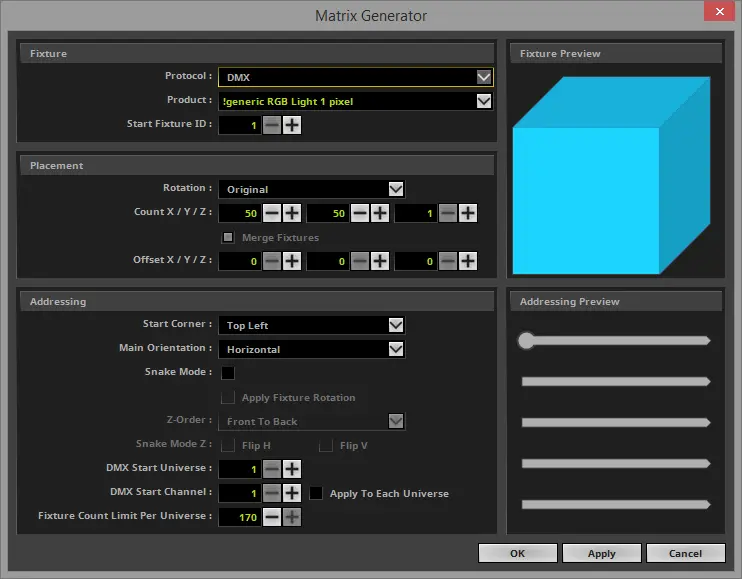
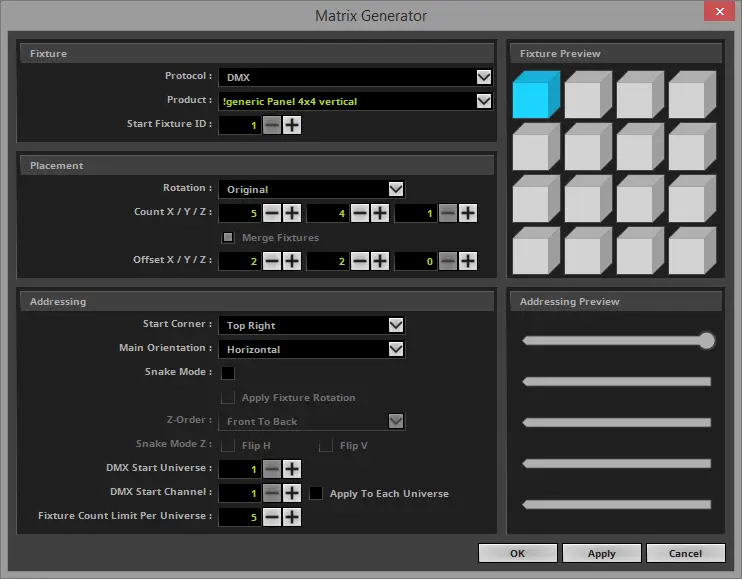
3- Now we have to change the settings according to our task to patch a 4×4 pixel panel with a resolution of 5 x 4 fixtures with an offset of 2 pixels between every fixture.
- In the Fixture section, we have to change:
- Normally, we don't need to change the Protocol. It must be DMX.
- In this example, we create a patch with the Product:! generic panel 4×4 vertical
- In the Placement section, we have to change the following settings:
- Count X needs to be set to 5, Count Y needs to be set to 4, and Count Z is left at 1.
- The offset for X and Y has to be set to 2.
- In the Addressing section, we need to make the following changes:
- According to the patch plan, the first fixture has to be assigned on the top left side. So we change the starting corner to the top right.
- Since our task is to have each line patched in a new universe and we know 5 fixtures are in a line, we have to change the Fixture Count Limit Per Universe to 5.
Now, we can compare the Addressing Preview with our patch plan. If both are equal, we click “OK“. [Keyboard shortcut: Enter]
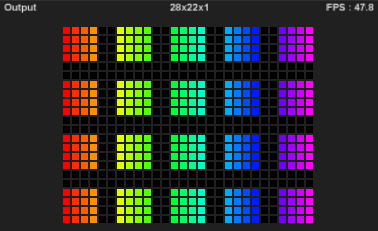
4- After the Matrix Generator was closed, MADRIX immediately created the new matrix of 5 x 4 “!generic panel 4×4 vertical” fixtures.
Video Tutorial:
Congratulations! You have successfully learned how to create a 2D patch for DMX output.



Pixel LED Effects Download Pack: 7000 Effects for LEDEdit
https://lededittm.com/pixel-led-effects-download-pack-7000-effects-for-lededit