Book Categories:
How to Use LEDEdit 2014 Software: Complete Tutorial

Because of its functionality and simplicity of use, LEDEdit 2014 is a popular software among LED software or Pixel LED programmers. However, it is difficult for novices to locate LEDEdit 2014 software tutorials in English. My mission with this article is to meet that requirement.
Table of Contents
If you haven't already installed the LEDEdit software on your PC, please click here to do so. As you may know, there are many versions of this software, but they all have the same type of interface and features. This software has two main types: “LEDEdit” and “LEDEdit-K.” Versions of “LEDEdit-K” software have expiry dates; thus, if you are running an old version of LEDEdit software, you must alter your PC's system date for certain dates for which software versions are valid. Otherwise, you will see this message.
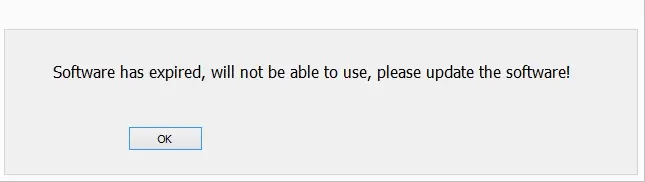
To fix this, change the system date as shown below.
- Change the system date for LedEdit-K 2016 between 2016 (January) and 2017 (May).
- Change the system date for LedEdit-K 2017 between 2017 (January) and 2018 (May).
Start the LEDEdit software. Let's take it one step at a time.
Note: This tutorial is for “LEDEdit” software versions, not “LEDEdit-K” software versions.
Starting a New LEDEdit 2014 Project
1– Click “File” in the software interface and choose “New Project” from the drop-down list.
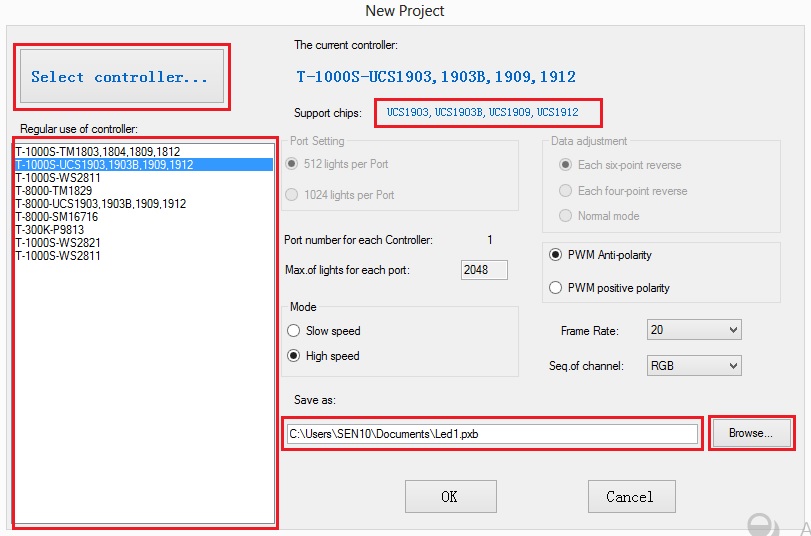
2– As you can see on the “Regular Use of Controller” list, there are a few popular controllers. If your LEDEdit controller is on that list, click it. If your controller isn't shown, click the “Select Controller” button.
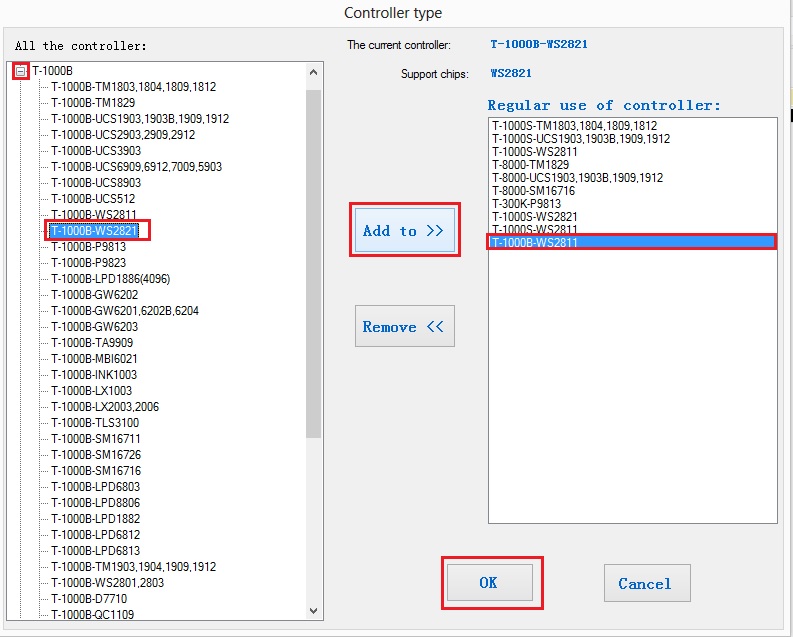
3– In the “Select Controller” dialogue window, expand the lists by clicking on the “+” signs and scrolling with the scroll bar to find your controller's name. The controller label is made up of the controller name plus the name of the LED chip. For example, in the picture above, I chose “T1000-B-WS2811” since I have the “T1000-B” controller and I'm going to drive pixel LEDs controlled by the WS2811 RGB Drive chip. For example, if you have a controller called “X” and your LED is powered by an IC named “Y“, choose X-Y. I hope you understand what I mean.
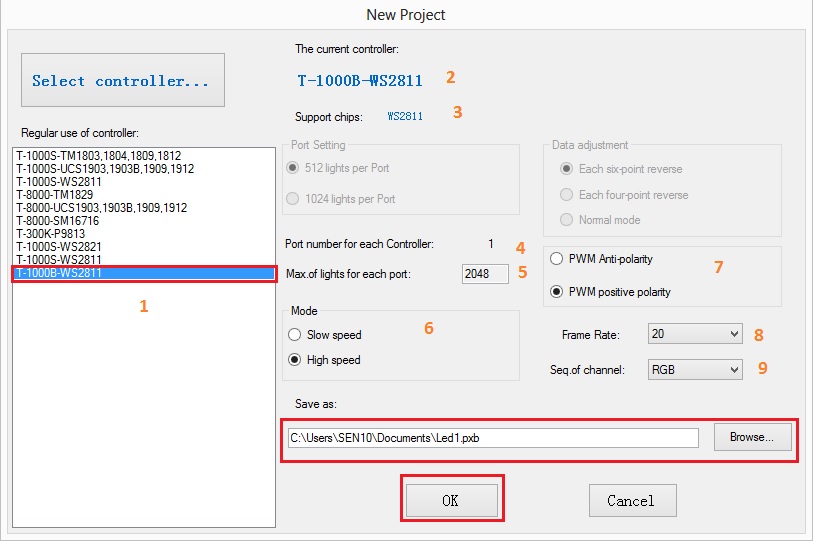
4– In the “Regular Use of Controller” list, you should see your controller and LED controller chip name; select your controller from that list. When you select your LED controller, the basic controller settings will be shown on the left side of the window. You can change them (the available settings will be different from controller to controller). In the picture above,
- Select the controller from the “Regular Use of Controller” list.
- LED Drive Chip Name and Controller Type.
- Controller-Supported LED Controller Chip Type.
- The controller's port numbers (in this case, “T1000-B-WS2811”) are available.
- The maximum number of LEDs that the port can drive is 2048.
- LED data transfer speed.
- LED Data PWM Polarity (Positive or Negative) (Before making your selection, consult your LED Dive Chip Datasheet).
- Animation and movie data frame rate (frames per second).
- Data Sequence in this case (Red, Green, or Blue; before making this selection, please read the datasheet for your LED Dive chip).
5– Click “Browse” and select the path where you want to save the project file. Then press the “OK” button.
Setting LED Layout in LEDEdit 2014
We talked about selecting the controller and its basic settings in the previous step. For the controller to deliver data, we must tell it how we want to connect our LEDs, the number of LEDs in the display, and the layout (the design we get when we place our LEDs). There are two basic types of layouts.
- Regular layouts (square, rectangle, circle, and line).
- Irregular layouts (other shapes, text, and custom shapes).
Another tutorial will discuss irregular layouts (link in the next paragraph). where I'll go through how to discuss irregular layouts using LEDEdit 2014 layout builder, as well as how to design custom layouts with CorelDraw and AutoCAD.
To keep this article simple, we will use the auto layout generator option to create a regular layout. I will show how to design a small 32×64 (HxW) LED panel (rectangular) layout.
1- On the top-right of the LEDEdit 2014 software window, click the purple gear icon. This will show the auto-layout generator window.
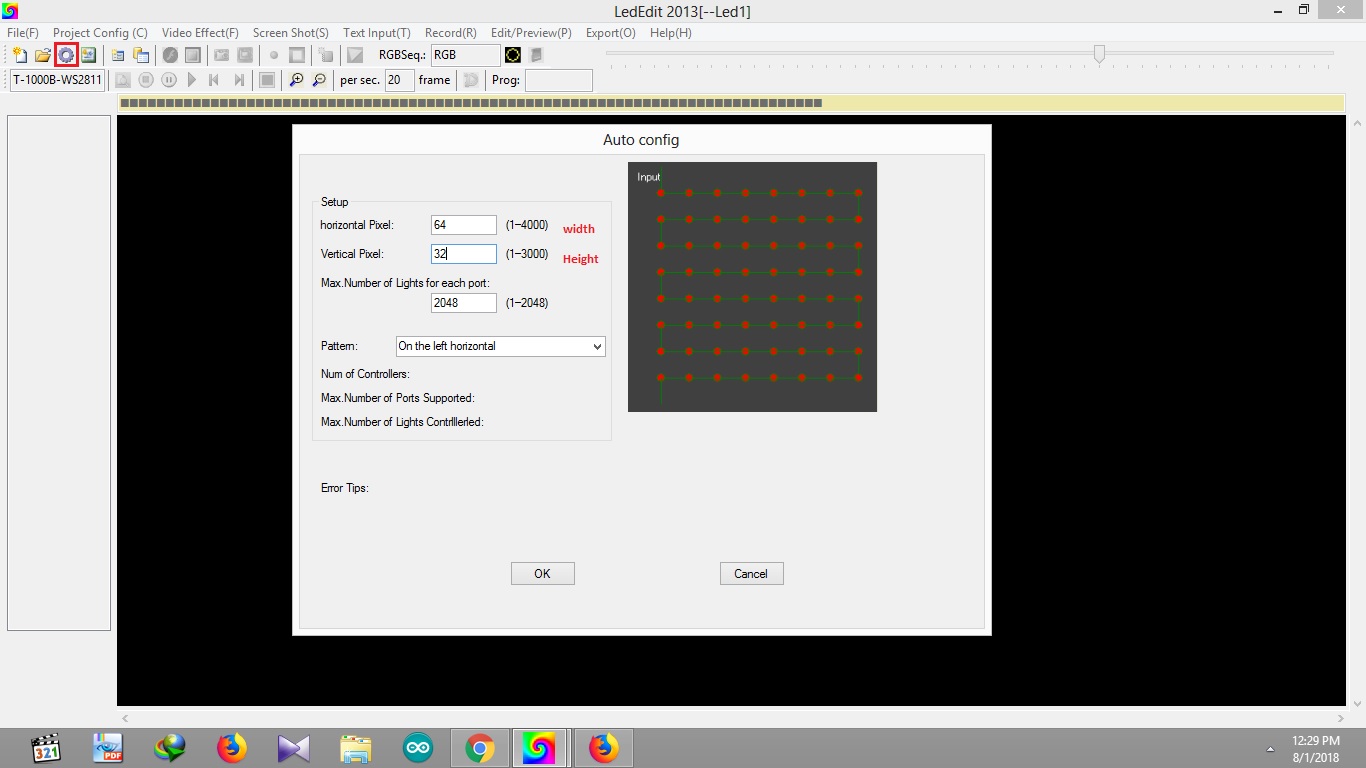
2- In the text area next to the “Horizontal Pixels” label, type the number of LEDs in the horizontal direction or the width of your LED panel, and the number of LEDs in the vertical direction or the height of your LED panel, in the text field next to the “Vertical Pixels” label.
3- In the text field next to “Maximum Number of Lights per Port“, enter the maximum number of LEDs you want to use in a port. In this case, 32×64 is equal to 2048.
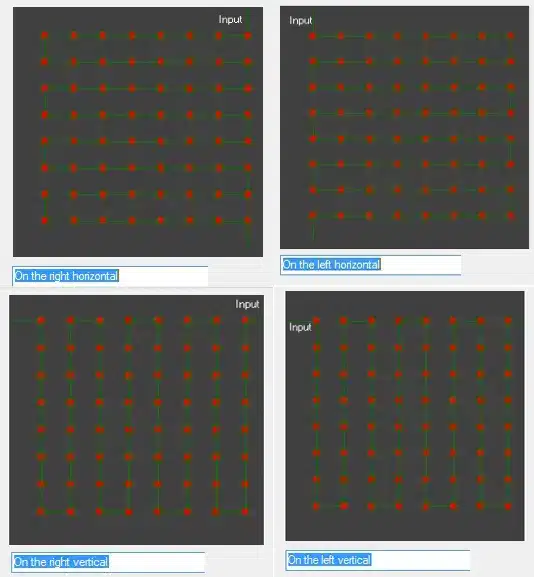
4- Choose the pattern that will be used to connect the LEDs (if you choose a different pattern from the physical pattern you made, it will cause an upside-down, right-side-left, or screen distortion effect when you finally program it). So think about how you're going to wire it. To complete, click the “OK” button. As demonstrated below, the layout you just created will be visible.
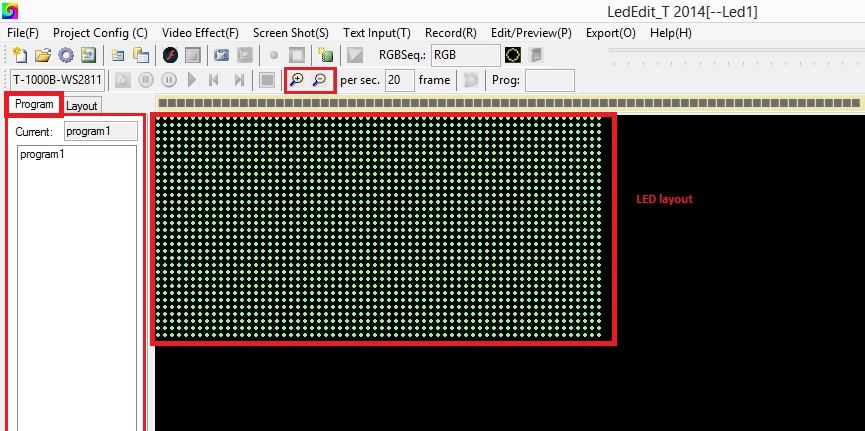
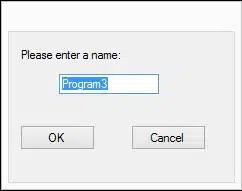
6- “Program 1” has now been added to the Program tab. Give the program a name, and then click “OK” to add it, adding as many as you like using the “Add” button below. This allows you to create different animations under different program labels. Different labels should be used for different programs. Don't use the same label again and again.
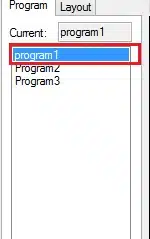
7- Select the program from the list that you wish to use to record video or animation.
Recording a video or an animation
In LEDEdit 2014, programming means recording a previously played video or animation and editing it to get the desired outcome.
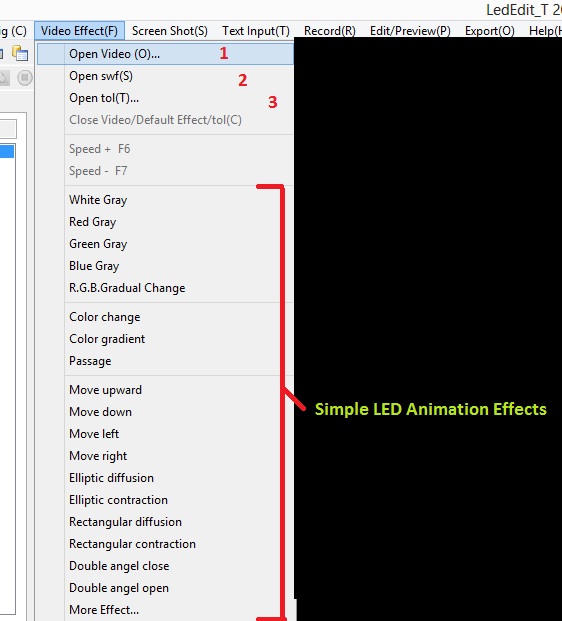
1- Click “Video Effect” from the top main bar. To begin, select one of the first three options to open a file or another option to select a predefined simple animation effect.
- Open Video (AVI, SWF, WMV, MPEG, MPG)
- Open SWF (SWF animation)
- Tol (tol animation file) should be opened.
2- I'm going to open an SWF animation from my PC, so I select “Open SWF” or “Open Video” from the drop-down list and select my file.
If you need My Animation Collection, “click here” to download it.
3- You've now selected your animation or video file. The animation or video you chose is now playing in both the player and your LED layout window. If you need to capture the video in slow mode, lower the frame rate by clicking “Project Config“, selecting “Frame Rate“, selecting a low frame rate, and clicking “OK“. If you need to stop the animation, click the “Stop” button. If you need to record anything on your display, use the “Screen record” command.
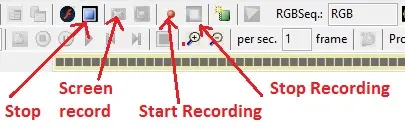
4- It's now time to start recording the video. As the video played, click “Start Recording” just before the first frame. You must record and wait until it reaches the moment at which you must stop recording. Click “Stop” as soon as that frame in the player passes. To stop the animation, use the “Stop” button.
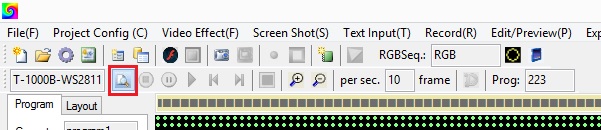
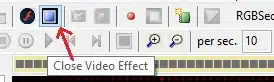
Click on the “Edit preview” button in the top right corner to see what we took; if it's disabled, click on the “Close Video Effect” button.
The animation is now playing in the LED layout, and the time slider in the top left corner is moving as the animation plays.
Edit Mode on LEDEdit 2014
The Edit mode's purpose is to remove and add frames from the acquired video in order to create the animation or video outcome that we want.
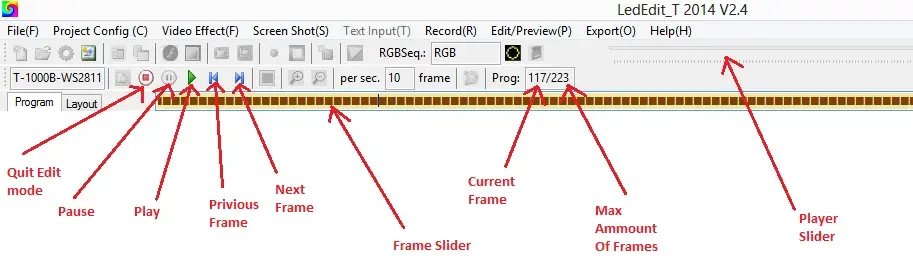
- Play button: Play the captured video after it's been paused.
- Pause: Pause the captured video after it's been played.
- Next Frame: To move to the next frame in the frame slide
- Previous Frame: To access the previous frame in the frame slide.
- Frame slide: This can be used to select and view the frames you want to edit.
- Player Time Slider: This can be used to view the specific location of the animation or video by grabbing and moving it from left to right.
Let's start by editing some frames. As an example, I'll erase the first 20 frames of this animation, then copy the frame range between 30 and 60 and paste it at the start. We're in edit mode.
1- Pause the animation (if it's playing) by clicking the pause button.
2- To delete the frames, go to the top main bar, click “Edit Preview“, and then select “Delete” from the drop-down list. It will open the Delete Frames window.
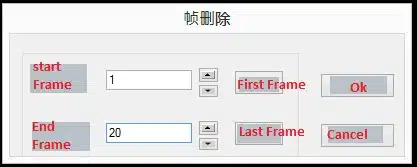
3- This sub-window is, unfortunately, only accessible in Chinese. I've translated the window's content for you. Type the start frame number in the text field next to the “start frame” label and the end frame number in the text field next to the “end frame” label. You may use the “Beginning frame” and “Final frame” buttons to select the first and last frames in the animation, respectively; these two buttons are useful for erasing a whole animation. Click “OK” to confirm the action.
Pixel LED Effects Download Pack: 7000 Effects
- Files: 7000+
- Size: 25 GB
- Formats: SWF, TOL, AVI, MP4, and GIF
3- This sub-window is, unfortunately, only accessible in Chinese. I've translated the window's content for you. Type the start frame number in the text field next to the “start frame” label and the end frame number in the text field next to the “end frame” label. You may use the “Beginning frame” and “Final frame” buttons to select the first and last frames in the animation, respectively; these two buttons are useful for erasing a whole animation. Click “OK” to confirm the action.
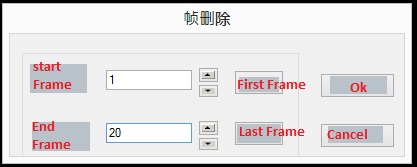
4- To copy a range of frames, go to the top main bar, click “Edit Preview“, and then select “Copy” from the drop-down list. It will launch the copy frames window. Type the start frame number in the text field next to the “start frame” label and the end frame number in the text field next to the “end frame” label. Click “OK” to confirm the action.
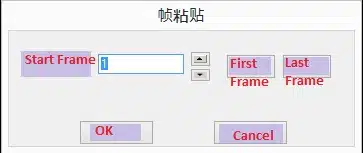
5- To paste, click “paste” from the drop-down list under “Edit Preview” on the top main bar. In the Paste Frame window, specify the frame position where you wish to paste the previously duplicated frames, and then click “OK“.
Exporting The Project
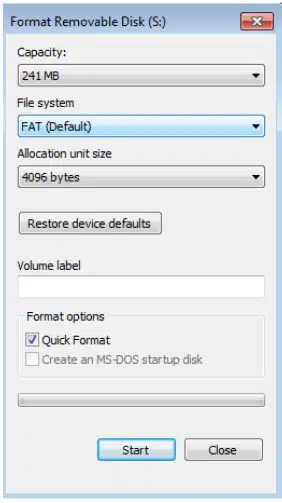
It's now time to save the animation, video, and controller settings to the SD memory card. Insert your memory card into your card reader (if you don't already have one, please get one). They are relatively inexpensive, and you may use the built-in card reader on your laptop for this purpose. Format your SD card as “Fat32“.
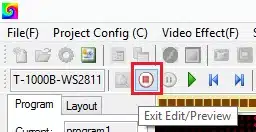
1- If you are in “Edit/Preview” mode, click the “Exit Edit/Preview” button to exit. Go ahead and click “Export” from the top menu bar.
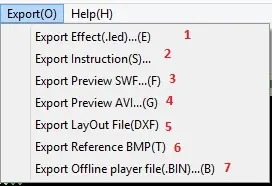
- To export the “.led” file (this is what we are going to put on the SD card),
- To create a “readme.txt” file.
- To export your video in “.swf” format.
- To export your video in “.AVI” format.
- To export your LED layout in “.DXF” format.
- To export your LED layout in “.BMP” format.
- To convert your video to a binary file (.BIN).
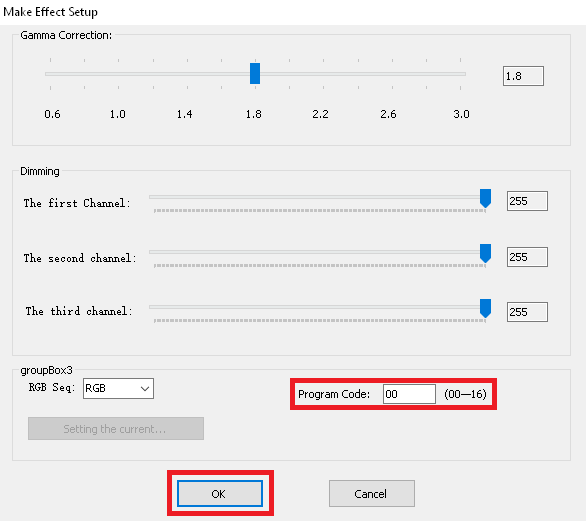
If you haven't programmed any LED programs in the program list, delete them before proceeding. using the delete button at the bottom.
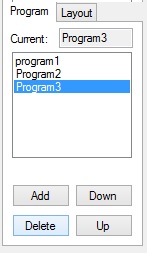
2- Click “Export Effect (.led)” as the first option. This displays the Effect Setup window. This window allows you to adjust gamma (if your LEDs have incorrect gamma effects) and dim each R, G, and B channel. Check the datasheet for your LED driver IC to see what “RGB seq” means. Fill in the text field in front of “Program Code:” with a number between 00 and 16. (You can choose a different number for each program.) Click “OK“.
3- Select the path to save your .led file in the “Browse for Folder” window. Remember that each time you do this, the program will delete the “leads” folder and its contents and replace them with fresh ones. As a result, if you're working on several programs, export those “.led” files to different directories on your hard drive. For information on SD Card format and file placement, please see the manual for your controller.
T1000 Controller Setting
Project settings:
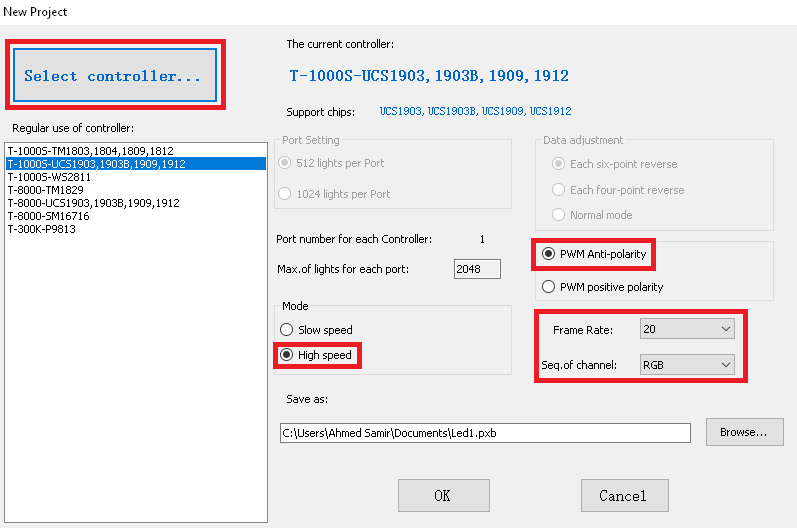
Use 30 frames per second if you only have 512 LEDs (for smooth transitions); otherwise, use 20 frames per second.
Play around with the gamma correction values until you achieve the desired result for your LED colors.
Use brightness correction bars if one color is brighter than another.
For each program, use a number between 0 and 16. (The maximum number of supported program files is 16).
The SD card should be formatted using FAT32.
Copy and paste the program files into the SD card's root directory and name them as shown below.
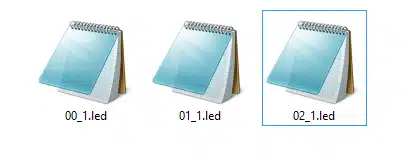
That's all. As you can see, each controller has its own set of specifications. You must refer to the user manual for the specific controller before programming it.
If you like LED software, you may also like:
We hope you find this tutorial useful. Thanks for reading.
Wow
Light work
gracias por toda la informacion
is it possible to use split a display into two parts in 2014 version
In LEDEdit 2014, you can create the effect of a “split display,” but not in the sense of a true dual-screen layout tool like modern editors. It depends on what you mean by “split.”
1. Splitting the LED matrix into sections (most common meaning)
Yes — you can divide the display by using zones / regions:
Open your project in LEDEdit
Go to Screen Settings / Display Settings
Look for Partition / Area / Zone settings
Define multiple regions (e.g., left/right or top/bottom)
Assign different content (text, time, animation) to each zone
This is the closest thing to a “split screen” inside LEDEdit 2014.
2. Splitting content inside one program
If you just want different content side-by-side:
Create a layout with multiple text objects
Position them manually (left/right halves)
Adjust size and alignment so they don’t overlap
This works even if your controller doesn’t support true zoning.
3. Hardware limitation matters
Whether it truly behaves like two independent screens depends on your LED controller:
Some controllers support multi-zone playback
Others only display a single continuous canvas (so “split” is visual only)
Bottom line
✔ Yes, you can split the display logically using zones or layout design
❌ No, LEDEdit 2014 doesn’t provide a modern “dual screen workspace” feature like video editors